Yesterday night, I was able to buy my own domain makoyskie.com for the price of $9.69 for one year courtesy of NameCheap.com. Thank you to Itot for the help in the setup. I was having a hard time making it online but with the help of Itot, it went all right.
Finally, after more than two years, I have my own domain. I have been thinking of creating a new blog and use this new domain. My old posts in Makoy's Memoirs Of A Certified Blogger will still be intact in my old blog and new posts will be available in makoyskie.com.
I'm on the stage of looking for a new blog template and finding the right Blog Title. My blogger friend Tami suggested the title, "Memoirs Of A Certitified Pinoy Blogger." What do you think? Leave a comment if you have a suggested title. I would appreciate it a lot.
And oh, to my Link Love friends, please update my link to makoyskie.com. Thanks!
If you like this post, buy me a cup of coffee.

Showing posts with label Web/Tech. Show all posts
Showing posts with label Web/Tech. Show all posts
Tuesday, October 7, 2008


Tuesday, September 2, 2008
Wrinkle Miracle Pillow
Tweet I think I need to have this one. In London, a pillow case made in copper-oxide material has been helping to get rid of wrinkles and crow’s feet. If you are considering on having Botox or drastic derma treatments, I think this is safer and you won’t even feel a thing.
During the clinical trial supervised by a Dermatologist, 57 volunteers were tested for four weeks. It has been reported that those who used the copper-oxide pillows has fewer wrinkles and the lines from their face started to soften. The secret behind this is that the copper-oxide material helps in increasing the production of collagen below the surface of the skin, which helps in healing wounds.
The miracle behind this wrinkle free pillow is from Cupron, a company that makes copper medical dressings.
Cupron, you might want to send me a trial pillow. Hehe…
If you like this post, buy me a cup of coffee.
Monday, August 11, 2008
No More N82
Tweet Saturday night after we went to Plaza Singapura to meet our future housemate, I have finally contemplated that my last days with my Nokia N82 is nearing. I have copied numbers from it to my other mobile phone. Aside from that I also transferred pictures to my flash disk, which I will be posting in the coming days.
Too bad I wasn't able to use the Bluetooth device since the pairing wasn't working. I wasn't also able to use the GPS maps since I have no internet connection. The only feature that I enjoyed in N82 is the 5 megapixel camera. I just noticed that in some pictures, we had red eyes. I also was having problems in the call logs. Recent calls, missed calls and dialed calls weren't saved on the call logs.
Yesterday night, I have finally packed my not so N82 mobile phone. I placed it on its former bubble wrap inside the DHL pack. I have just asked my housemate to just give it to the DHL personnel, which will visit our house today. I just hope this free Nokia is forever and not for just two weeks.
To those who want a free Nokia phone, visit WomWorld.com. I have been receiving comments if this is true. Well, actually it is. There will be no payment from your side and all charges will be paid from Wom World. I'm just not sure on how long you will get your Nokia mobile phone after signing up. The duration of this free phone is only for two weeks, after that period a DHL personnel will pick up the mobile phone from your house.
Thank you to WOM world for letting me try a Nokia N82 phone.
If you like this post, buy me a cup of coffee.
Thursday, July 24, 2008
How To Save YouTube and YouTube Like Clips
Tweet
Before proceeding with this article, I would like to thank first Ton for this brilliant tip. Anyway, if you are a YouTube enthusiast like me then you might have thought of wanting to save those movie clips on your hard drive. You might have resorted on the help of Google on how to save the movie clips with a few steps. Google did not help me at all but it only gave links to sites which I need to download a software. The only freeware software that I saw was TubeHunter Ultra. The bad thing was it won’t work on my laptop. I read the instructions twice but it won’t still work. My only resort was to give up.
 The only thing that work was the tip from my friend Ton. You can either save YouTube clips by going to the link SaveTube.com. The site will ask you for the URL link of the movie clip in YouTube. Click the Download button afterwards. The downloaded file is on FLV format so you need an FLV player. You may use GOM player or other movie players that is compatible with FLV.
The other option is to use Real Player 11. Real Player has the web browser feature so you can actually browse YouTube or PinoyChannel.tv there. If you want to save the movie clip, just point your mouse on the movie clip itself and a Download This Video Link will popup. All you have to do is select the folder on which you want to save it. The downloaded file is still on FLV format. The good thing is Real Player can play this format.
Enjoy downloading!
If you like this post, buy me a cup of coffee.
 The only thing that work was the tip from my friend Ton. You can either save YouTube clips by going to the link SaveTube.com. The site will ask you for the URL link of the movie clip in YouTube. Click the Download button afterwards. The downloaded file is on FLV format so you need an FLV player. You may use GOM player or other movie players that is compatible with FLV.
The other option is to use Real Player 11. Real Player has the web browser feature so you can actually browse YouTube or PinoyChannel.tv there. If you want to save the movie clip, just point your mouse on the movie clip itself and a Download This Video Link will popup. All you have to do is select the folder on which you want to save it. The downloaded file is still on FLV format. The good thing is Real Player can play this format.
Enjoy downloading!
If you like this post, buy me a cup of coffee.
Tuesday, July 22, 2008
Visual Basic .Net Tutorial
Tweet
In preparation of my new work this month, I have asked the help of my friend in the Philippines for some Dot Net Tutorial. I also have Googled some tutorials in the web which can help me in learning Dot Net fast. Aside from that I also asked for a free downloadable version of Visual Basic Dot Net software. I’m glad my friend found a link in Microsoft that has a free version of Visual Basic 2008.
My next project now is to learn Dot Net before I start working. Based on my interview with my employer, they are expecting a lot from me since they were giving me a second chance. Not only I have to prove to them that I can deliver but I have to exceed their expectations.
I only have a week left so I have to make most of my “vacation” time. And being productive in terms of learning a new skill is one of my priorities.
If you like this post, buy me a cup of coffee.
My next project now is to learn Dot Net before I start working. Based on my interview with my employer, they are expecting a lot from me since they were giving me a second chance. Not only I have to prove to them that I can deliver but I have to exceed their expectations.
I only have a week left so I have to make most of my “vacation” time. And being productive in terms of learning a new skill is one of my priorities.
If you like this post, buy me a cup of coffee.
Saturday, July 12, 2008
iPhone 3G
Tweet People in the US are now cramming to get the new version of iPhone 3G. I think it was yesterday (July 11) that iPhone 3G was released. iPhone 3G starts at around $199. Apple’s new iPhone 3G has thinner edges, has full plastic back, flush headphone jack and its firmware is already version 2.0. Just like the criticism Apple received from its first version, Apple this time was flooded with complaints. Techie aficionado’s complained about the weak 3G signal and some compatibility issues. Some were happy that they finally have a hold to the new version of iPhone.
According to Apple Website, iPhone 3G has “fast 3G wireless technology, GPS mapping, support for enterprise features like Microsoft Exchange, and the new App Store, iPhone 3G puts even more features at your fingertips. And like the original iPhone, it combines three products in one — a revolutionary phone, a widescreen iPod, and a breakthrough Internet device with rich HTML email and a desktop-class web browser. iPhone 3G. It redefines what a mobile phone can do — again.”
So what’s new with iPhone 3G? You can now surf the web with fast 3G cellular networks. Aside from that it is now equipped with Maps using GPS, cool huh! Here are some of the new features: App Store, Microsoft Exchange, better email management, contacts search, views more attachments and has a scientific calculator.
For me, I better save my money for rainy days than to be in fashion.
If you like this post, buy me a cup of coffee.
How To Summarize Posts In Your Blog
Tweet
Are you fed up in adjusting the number of posts you are displaying in your blog after publishing a long post? Now you can control the number of words per post you display in your blog. By just following these instructions, you can display a shorter version of your post in your main blog. It’s just a bit complicated so you have to be careful and make sure to make a backup copy of your blog template.
Here goes… At your Dashboard, go directly to the Layout link. Click afterwards the Edit HTML link of the Layout page. Look for this code by clicking Ctrl+F. The code is right after the CSS code. Paste this code after :
After pasting the code, click the Save button. Still at the Edit HTML page, check the Expand Widget Templates followed by searching this code by clicking Ctrl+F. Paste this code after .
Now to display a shorter version of your post, you have to add this code on the start of your post and at the end of each post. I suggest you start on your new posts since you will have a hard time back tracking your old posts.
For example you want to display only Mark Ferdinand from the text Mark Ferdinand Tayag add the code to this format:
The output would be like this:
Mark Ferdinand
Read more on this article…
If you like this post, buy me a cup of coffee.
Here goes… At your Dashboard, go directly to the Layout link. Click afterwards the Edit HTML link of the Layout page. Look for this code by clicking Ctrl+F. The code is right after the CSS code. Paste this code after :
After pasting the code, click the Save button. Still at the Edit HTML page, check the Expand Widget Templates followed by searching this code by clicking Ctrl+F. Paste this code after .
Now to display a shorter version of your post, you have to add this code on the start of your post and at the end of each post. I suggest you start on your new posts since you will have a hard time back tracking your old posts.
For example you want to display only Mark Ferdinand from the text Mark Ferdinand Tayag add the code to this format:
The output would be like this:
Mark Ferdinand
Read more on this article…
If you like this post, buy me a cup of coffee.
Tuesday, June 24, 2008
How To Add Google Inline Text Ads
Tweet
Blogger now has the capability of displaying Google ads in between of your blog posts, which is called the inline text ads. The s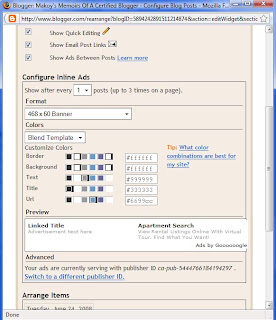 ad thing is you can only display a maximum of three Google ads. By the way, before displaying Google inline text ads, make sure to count first the number of Google ads in your blog. I think there are a maximum number of Google ads you can display in your site, three I guess. If you exceed with the limit, it will just display a blank ad.
Anyway, to add a Google inline text ad in your blog, go to your dashboard then click the Layout link. Once you are at the layout page, click the Edit link at the blog posts page element. It will launch a new page with the settings of the blog posts page element. Click the checkbox “Show Ads Between Posts”. The setting for the inline text ad will be displayed after. Just change the corresponding fields for the number of post interval and the text ad format you want then click the Save button. Make sure to check your blog after if you are already satisfied with your ad format.
Voila your Google inline text ads are ready to make money.
If you like this post, buy me a cup of coffee.
 ad thing is you can only display a maximum of three Google ads. By the way, before displaying Google inline text ads, make sure to count first the number of Google ads in your blog. I think there are a maximum number of Google ads you can display in your site, three I guess. If you exceed with the limit, it will just display a blank ad.
Anyway, to add a Google inline text ad in your blog, go to your dashboard then click the Layout link. Once you are at the layout page, click the Edit link at the blog posts page element. It will launch a new page with the settings of the blog posts page element. Click the checkbox “Show Ads Between Posts”. The setting for the inline text ad will be displayed after. Just change the corresponding fields for the number of post interval and the text ad format you want then click the Save button. Make sure to check your blog after if you are already satisfied with your ad format.
Voila your Google inline text ads are ready to make money.
If you like this post, buy me a cup of coffee.
Saturday, May 31, 2008
Globe to Touch Mobile Unlimited Texting
Tweet
I received a text message from a friend saying that if you are availing the Globe unlimited texting, you can now also send unlimited text messages to its sister company, Touch Mobile. Isn’t that great news? I immediately sent a text message to a friend who is a Touch Mobile subscriber then checked my prepaid balance. I was amazed that it was actually true.
I think it was Smart Telecommunications who was first in allowing unlimited texting between their sister companies. Of course, you have to register to avail this unlimited texting service. For Globe, they have 1 day, 2 days and 5 days of unlimited texting service. I’m not sure about Smart’s unlimited texting mechanics.
Another good news that I learned from a friend is the free web browsing of Globe for Yahoo! sites only. Isn’t that great news? You can now freely check your Yahoo! Mail and use the new Yahoo Messenger via Yahoo! Mail. “Sa globe, tight tayo! Nyee!”
If you like this post, buy me a cup of coffee.
I think it was Smart Telecommunications who was first in allowing unlimited texting between their sister companies. Of course, you have to register to avail this unlimited texting service. For Globe, they have 1 day, 2 days and 5 days of unlimited texting service. I’m not sure about Smart’s unlimited texting mechanics.
Another good news that I learned from a friend is the free web browsing of Globe for Yahoo! sites only. Isn’t that great news? You can now freely check your Yahoo! Mail and use the new Yahoo Messenger via Yahoo! Mail. “Sa globe, tight tayo! Nyee!”
If you like this post, buy me a cup of coffee.
Tuesday, May 27, 2008
How To Add Top Commentators In Your Blog
Tweet Here’s another way that can make your avid readers to regularly post comments in your blog. If you can see in my right sidebar, I have a list of top commentators. The list is sorted in descending order meaning anyone who has the most comments will be on top. The widget I used was actually from Yahoo! Pipes. You can visit their site or just do the shortcut with my little help.
Here’s what you should do. Just copy the code below then just change the properties of the following:
"url":"http:\/\/makoyskie.blogspot.com" This is the URL of your blog site. Just change makoyskie.blogspot.com with your own site.
"filter":"makoy,anonymous" Names that you will disregard in your top commentator list. Separate it with a comma if it is more than one.
"width":"200","height":"400" Width and height of your top commentator widget. Just change the 200 and 400 value depending on your taste.
Leave me a comment if the Top Commentator widget worked for you. I will in exchange leave a comment in your blog.
Happy blogging!
If you like this post, buy me a cup of coffee.
Tuesday, May 20, 2008
Smart Bro Prepaid Experience
Tweet After having troubles in buying the new Smart Bro prepaid, I finally was able to use it and surf the internet anywhere. It has been a week since I have used this product. So far it has surpassed my expectations based on speed. The Smart Bro prepaid package by the way contains the Smart Bro modem, two USB cords and a manual.
Before, I usually use the internet by going to Robinson’s Galleria and take advantage (abuse) of the mall’s free WIFi service. I also sometimes connect using my GPRS mobile phone. That was really horrible in terms of speed. I cannot even open my Yahoo and Chikka Messenger.
With the release of Smart Bro prepaid, it gave me more freedom with my Internet and blogging experience because of its broadband speed. The only problem that I experienced was sometimes I usually get disconnected since the Smart Bro modem depends on the 3G signal. So far, so good. I even find it faster than our internet connection in the office and in Robinson’s Galleria. I just hope they would charge on a minute basis and not on a 30 minutes basis. They should also lower the charging since it is cheaper to rent the internet on Internet cafés.
Before buying the Smart Bro prepaid check first if your Operating System is 32-bit. To check, go to My Computer, right-click then Properties. Smart Bro Prepaid will not work on 64-bit Operating Systems by the way. Happy surfing!
If you like this post, buy me a cup of coffee.
Thursday, May 8, 2008
SMART Bro Prepaid Fiasco
Tweet Last Monday after work, I was excited to visit a SMART Wireless Center to buy a SMART Bro Prepaid. Not only I will be wired anywhere but also I can get to talk to my loved ones all over the world. I was surprised that the SMART Wireless Center in Robinson’s Galleria now has a computerized ticketing system. Since it is my first time with that system, I asked the security guard right beside it on how to use it. He then asked me with the purpose of my visit. I told him that I would buy the SMART Bro Prepaid. I was so disappointed to hear from him that it was sold out in their outlet. I then have decided to go straight to SM MegaMall to check if they have a stock.
When I was on my way outside Robinson’s Galleria, it suddenly came to me to just ask the security guard if the outlet in SM MegaMall has stocks of SMART Bro Prepaid. Sadly, he told me that they don’t have stocks either. According to him, stocks will be available next week. I honestly don’t trust security guards and drivers. I just find them unreliable with past experiences. No offense though. With that, I contacted the SMART customer service and asked where I can get a SMART Bro Prepaid. The only feasible place to go with a Smart Bro Prepaid stock is in GreenHills branch.
When I was on the SMART outlet in GreenHills yesterday, I waited for my turn to be assisted by their sales agent. When my number was called, I immediately told the sales agent that I would buy the Smart Bro Prepaid. He immediately asked for the specification of my laptop then asked if my laptop has a 32-bit Operating System. According to him, SMART Bro prepaid will only work on a 32-bit Operating System. I did not have my laptop with me that time so I called my friend Rosell to look it up in the Internet. Sadly, she did not find any 32-bit with the specs of my Acer Aspire 4720 laptop. The only good thing that happened was the sales agent reserved that last stock of SMART Bro prepaid for me. I only have to pick it up until 6:30 P.M. today. When I got home yesterday, I was happy to see that my Operating System is 32-bit.
If you like this post, buy me a cup of coffee.
Monday, May 5, 2008
How To Add Bookmark Sites On Your Footer
Tweet
There are a lot of goodies or widgets that you can add in your blog that can make it more reader friendly. Not can it only benefit your reader but you as well. According to Wikipedia, “Social bookmarking is a method for Internet users to store, organize, search, and manage bookmarks of web pages on the Internet with the help of metadata.” Social bookmarking is one of the tricks that can bring traffic to your site. Some well-known bookmark sites are Digg, del.icio.us, StumbleUpon and Technorati. I can attest to this that after submitting posts to these bookmark sites, it generated huge impact to my reader base.
 To make it easier, you can add the bookmark sites link in your post footer just like what I did in this blog. Just be patient in following the instructions that I will give and you’ll be good to go. The step-by-step procedure is only for blogger user by the way. At your Dashboard, go to the Templates link then select Edit HTML. Make sure to save your current template for backup just in case you will encounter some error in the coding. After your backup, click the Expand Widget Templates button. Look for the code by pressing Ctrl+F or Find in your browser. Paste this code at the end of that code then click the Save Template link. If you want to limit the number of bookmark sites, you can just delete the entire row code for the undesired bookmark site. You can also include graphic icon of bookmark sites instead of links. Just Google for the icons then include its location on the code. As easy as that.
If you are successful in adding bookmark sites link in your blog footer, how about “digging” and “stumbling” this post or even my entire blog? Hehe.
Thanks again to Itot for this code.
If you like this post, buy me a cup of coffee.
 To make it easier, you can add the bookmark sites link in your post footer just like what I did in this blog. Just be patient in following the instructions that I will give and you’ll be good to go. The step-by-step procedure is only for blogger user by the way. At your Dashboard, go to the Templates link then select Edit HTML. Make sure to save your current template for backup just in case you will encounter some error in the coding. After your backup, click the Expand Widget Templates button. Look for the code by pressing Ctrl+F or Find in your browser. Paste this code at the end of that code then click the Save Template link. If you want to limit the number of bookmark sites, you can just delete the entire row code for the undesired bookmark site. You can also include graphic icon of bookmark sites instead of links. Just Google for the icons then include its location on the code. As easy as that.
If you are successful in adding bookmark sites link in your blog footer, how about “digging” and “stumbling” this post or even my entire blog? Hehe.
Thanks again to Itot for this code.
If you like this post, buy me a cup of coffee.
Monday, April 21, 2008
Globe Mobile Internet New Pricing
Tweet
Globe Telecom recently introduced the new pricing for their mobile internet. Globe subscribers can now choose from 15 centavos per Kilobyte or 5 pesos per 15 minutes internet browsing. I think Globe Telecom realized that it’s very uncompetitive to charge 15 centavos per Kilobyte since their rival network, SMART Communications are charging 10 pesos for 30 minutes internet browsing.
Since I loved to be wired most of the time, I had tried connecting to SMART using a SMART SIM. I even bought a SIM card since Globe charges a lot before. Just this week, I tried connecting to the internet using my Globe SIM. Of course, I called first Globe Telecom’s customer service for instructions since it’s my first time for Globe. By the way if you want to avail the 5 pesos per 15 minutes browsing, you need to send the message TIME to 1111 for free. You will receive a text confirmation within 1 hour. To revert back to the 15 centavos per Kilobyte browsing, just text KB to 1111 for free.
Before you can start connecting to the internet, you need to check the APN setting. APN should be set to http.globe.com.ph. The dial up number for Sony Ericsson is *99***1# and just leave the username and password blank.
What can I say about Globe’s internet browsing? Compared to SMART, it is faster. The only sad thing is that I still cannot connect on either Yahoo Messenger or Chikka. Maybe it is because I am not using a 3G phone.
If you like this post, buy me a cup of coffee.
Since I loved to be wired most of the time, I had tried connecting to SMART using a SMART SIM. I even bought a SIM card since Globe charges a lot before. Just this week, I tried connecting to the internet using my Globe SIM. Of course, I called first Globe Telecom’s customer service for instructions since it’s my first time for Globe. By the way if you want to avail the 5 pesos per 15 minutes browsing, you need to send the message TIME to 1111 for free. You will receive a text confirmation within 1 hour. To revert back to the 15 centavos per Kilobyte browsing, just text KB to 1111 for free.
Before you can start connecting to the internet, you need to check the APN setting. APN should be set to http.globe.com.ph. The dial up number for Sony Ericsson is *99***1# and just leave the username and password blank.
What can I say about Globe’s internet browsing? Compared to SMART, it is faster. The only sad thing is that I still cannot connect on either Yahoo Messenger or Chikka. Maybe it is because I am not using a 3G phone.
If you like this post, buy me a cup of coffee.
Wednesday, April 16, 2008
How To Disable Right Clicking In Your Site
Tweet
Ever wonder why when you right-click on my site, there a message that says, “Right-clicking has been disabled?” Well, I actually added a code in my blog that restricts right clicking. So, what’s this right-click disabling can do to your site? Not only it will protect you from others copying your text content and pictures but it will also restrict others from viewing your source code. If you are an IT person like me, of course there is a technique that can make you still copy and view source codes.
Thanks by the way to Itot for the source code. If you are a blogger user, all you need to do is to go to your Dashboard then click the Layout selection. At the layout screen, click the Add A Page Element then choose HTML/JavaScript. Paste the code then click Save. Refresh your web site then try right clicking on your site. Voila!
Download the source code here.
If you like this post, buy me a cup of coffee.
Thanks by the way to Itot for the source code. If you are a blogger user, all you need to do is to go to your Dashboard then click the Layout selection. At the layout screen, click the Add A Page Element then choose HTML/JavaScript. Paste the code then click Save. Refresh your web site then try right clicking on your site. Voila!
Download the source code here.
If you like this post, buy me a cup of coffee.
Monday, April 7, 2008
Makoy On Top
Tweet
Yesterday before I left the office, I tried searching the word “makoy” on Google. I was surprised that I was suddenly on top, my blog ranked first! Woah! I finally have surpassed my opponent makoy.com after being second to that site for so long. My literary site by the way ranked third, which is still not disappointing.
My SEO techniques are working after all. I’m just so happy that one of my targets keywords to be utilized this year is now on top. I just have to work on with Yahoo since this blog only ranked third.
What is the difference between Google and Yahoo anyway when it comes to the search engine results?
If you like this post, buy me a cup of coffee.
My SEO techniques are working after all. I’m just so happy that one of my targets keywords to be utilized this year is now on top. I just have to work on with Yahoo since this blog only ranked third.
What is the difference between Google and Yahoo anyway when it comes to the search engine results?
If you like this post, buy me a cup of coffee.
Sunday, April 6, 2008
KC Concepcion, Still The Most Searched In My Site
Tweet
For the month of March 2008, here are the most searched keywords in my blog. KC Concepcion topped again in my most searched articles followed by Marian Rivera.
1. kc concepcion – 22%
2. "marian rivera" – 8%
3. makoy – 8%
4. marian rivera – 8%
5. kc concepcion sexy pics – 6%
6. singles in blogspot – 6%
7. sexy pictures – 5%
8. papaya dance – 5%
9. when timawa meets delgado – 4%
10. memories of my melancholy whores resum – 3%
11. malibay american idol – 3%
12. mark ferdinand tayag – 3%
13. "kc concepcion" – 3%
14. american idol season 7 top 9 – 2%
15. nicole uysiuseng – 2%
16. tracker "page ranks" – 2%
17. american idol season 7 top 10 results – 2%
18.gus tambunting – 2%
19. "pacquiao marquez" 2 – 2%
20. david archuleta– 2%
Statistics based on Google Webmaster Tools.
If you like this post, buy me a cup of coffee.
1. kc concepcion – 22%
2. "marian rivera" – 8%
3. makoy – 8%
4. marian rivera – 8%
5. kc concepcion sexy pics – 6%
6. singles in blogspot – 6%
7. sexy pictures – 5%
8. papaya dance – 5%
9. when timawa meets delgado – 4%
10. memories of my melancholy whores resum – 3%
11. malibay american idol – 3%
12. mark ferdinand tayag – 3%
13. "kc concepcion" – 3%
14. american idol season 7 top 9 – 2%
15. nicole uysiuseng – 2%
16. tracker "page ranks" – 2%
17. american idol season 7 top 10 results – 2%
18.gus tambunting – 2%
19. "pacquiao marquez" 2 – 2%
20. david archuleta– 2%
Statistics based on Google Webmaster Tools.
If you like this post, buy me a cup of coffee.
Tuesday, April 1, 2008
Smart Bro Prepaid
TweetAfter the launching of SMART Bro Anywhere, SMART Bro now goes prepaid. For only 4,500 pesos, you can get the SMART Bro modem with a SIM card and 30 pesos worth of load. Internet usage is charged on a 30-minute basis for only 10 pesos. You can load up your SMART Bro prepaid on SMART Wireless centers and soon on SMART prepaid loading stations.What can I say with this new innovation? I think the best way is still on subscribing to an unlimited plan instead of a prepaid. Not only you will maximize your Internet time but you can also save on paying the gadgets used on SMART Bro prepaid. If you want to push through SMART Bro prepaid and you have a SMART SIM and a 3G phone, better connect to your 3G phone instead and save on paying 4,500 for the SMART Bro modem. Read my How To Connect The Internet Using Your Mobile Phone post to learn more.
Picture courtesy of Smart Broadband, Inc.
Related Article:
How To Connect The Internet Using Your Mobile Phone
If you like this post, buy me a cup of coffee.
Thursday, March 27, 2008
How To Gain Your Page Ranks
Tweet
I have been receiving questions on how I gained my Page Rank back. Here are the things I did that I got from a SEO eBook.
First, be reminded that Page Rank is all about links, links and links. Make sure to regularly check your Links page if the sites you have linked are still linking you. Linking them without them linking you will just drag your PR down. Erase immediately!
Second, still in your Links page, after checking if you are still linked with those sites, check with Google if that site is banned. If the site is PR 0 then the site might be banned. To double check, go to the Google website then search for the exact URL of the site (http://makoyskie.blogspot.com). If there are no search results then the site is positively banned. You must immediately delete their links or you will eventually be penalized and receive a PR 0. Take note that new sites are an exception to this since it will take time to be indexed in Google.
And lastly, review the Guidelines for Webmasters provided by Google. You might be doing stuffs that are actually prohibited. Better be safe than sorry.
If you like this post, buy me a cup of coffee.
First, be reminded that Page Rank is all about links, links and links. Make sure to regularly check your Links page if the sites you have linked are still linking you. Linking them without them linking you will just drag your PR down. Erase immediately!
Second, still in your Links page, after checking if you are still linked with those sites, check with Google if that site is banned. If the site is PR 0 then the site might be banned. To double check, go to the Google website then search for the exact URL of the site (http://makoyskie.blogspot.com). If there are no search results then the site is positively banned. You must immediately delete their links or you will eventually be penalized and receive a PR 0. Take note that new sites are an exception to this since it will take time to be indexed in Google.
And lastly, review the Guidelines for Webmasters provided by Google. You might be doing stuffs that are actually prohibited. Better be safe than sorry.
If you like this post, buy me a cup of coffee.
Thursday, March 20, 2008
Save More In Calling And Texting
Tweet
If you are a Globe or a SMART subscriber, you should know these cost efficient promos that can save you money.
For Globe Subscribers:
· 10 centavos per second call. Dial 232+9 digit cell number. Example: 232917000000
· 10 pesos call for 3 minutes. Dial 235+9 digit cell number. Example: 235917000000
· Text globe to globe unlimited for 5 days for only 80 pesos. To register, send the message UNLITXT80 to 2870. For 1 day unlimited texting, just change the amount to 20.
For SMART Subscribers:
· 10 pesos call for 3 minutes. Dial *883+10 digit cell number. Example: *8830919000000
· Text SMART to SMART unlimited for 1 day with free 10 text messages for other networks for only 25 pesos. To register, send the message UNLI25 to 258.
If you like this post, buy me a cup of coffee.
For Globe Subscribers:
· 10 centavos per second call. Dial 232+9 digit cell number. Example: 232917000000
· 10 pesos call for 3 minutes. Dial 235+9 digit cell number. Example: 235917000000
· Text globe to globe unlimited for 5 days for only 80 pesos. To register, send the message UNLITXT80 to 2870. For 1 day unlimited texting, just change the amount to 20.
For SMART Subscribers:
· 10 pesos call for 3 minutes. Dial *883+10 digit cell number. Example: *8830919000000
· Text SMART to SMART unlimited for 1 day with free 10 text messages for other networks for only 25 pesos. To register, send the message UNLI25 to 258.
If you like this post, buy me a cup of coffee.
Subscribe to:
Posts (Atom)